
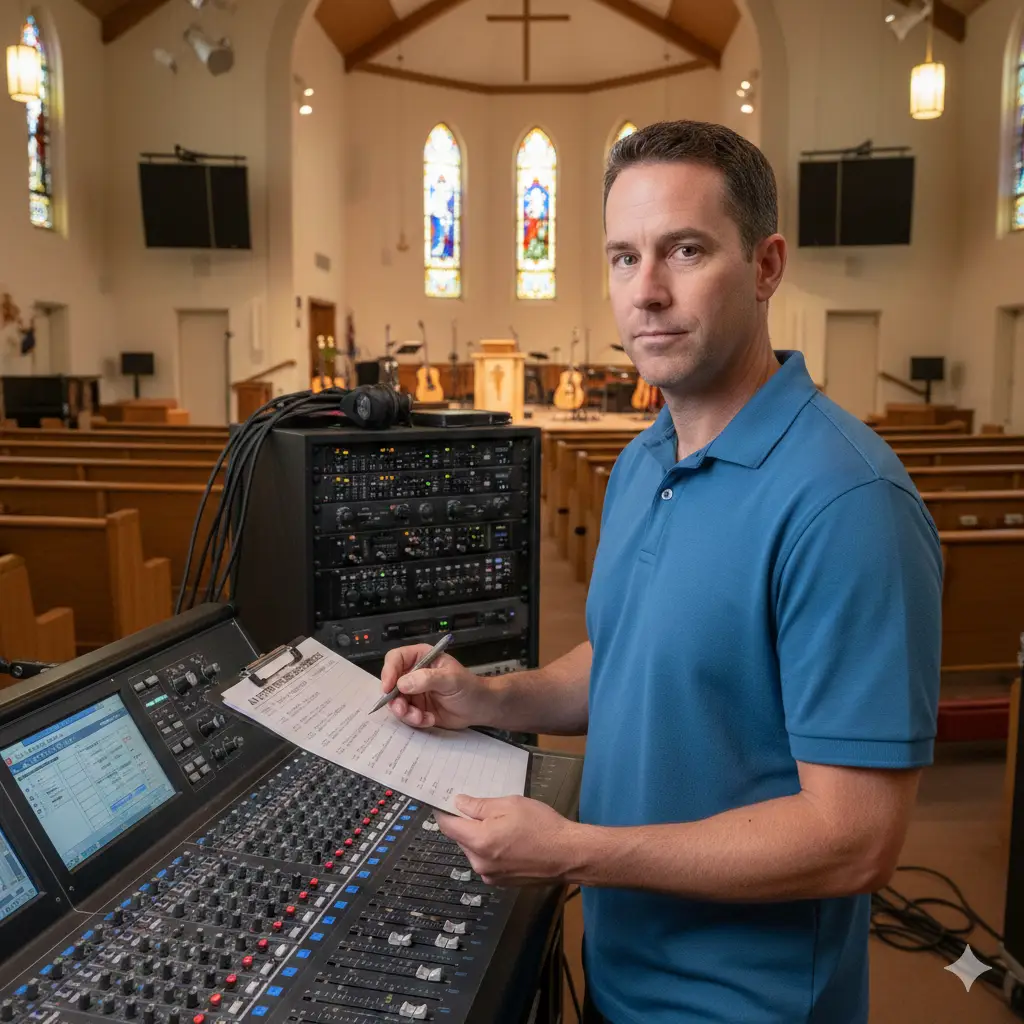
You usually find out something is wrong with your audio visual equipment at the worst possible time. The projector will not start before a client presentation. Wireless microphones cut out during a sermon. A camera freezes in the middle of a hybrid class. Most of the time, the problem has been building for weeks or months. That is why AV system maintenance matters so much and why a simple checklist helps.
Industry groups like AVIXA also stress the value of a regular maintenance schedule with routine equipment checks, cleaning, and software updates, which is exactly what this checklist is meant to support. Think of this as a quick, practical companion to the main maintenance guide, focused on what to check and when. Use it to keep your AV setup ready before anyone walks into the room.
How to Use This Checklist
This checklist is meant to be simple. You can print it, adjust it, or fold it into your own internal process.
- Start with your most important rooms. That might be a boardroom, sanctuary, training room, or any critical event space.
- Mark which items you will do daily, weekly, monthly, quarterly, and annually.
- Note which tasks are safe for your team and which should be handled by your AV partner.
- Keep a short log of maintenance activities so that repeating problems are easier to spot.
Daily / Pre-Event AV Checks
Think of these as fast system checks before people arrive. Most of this can be done by any trained staff member.
Audio
- Power on amplifiers and audio systems, and make sure there are no error lights.
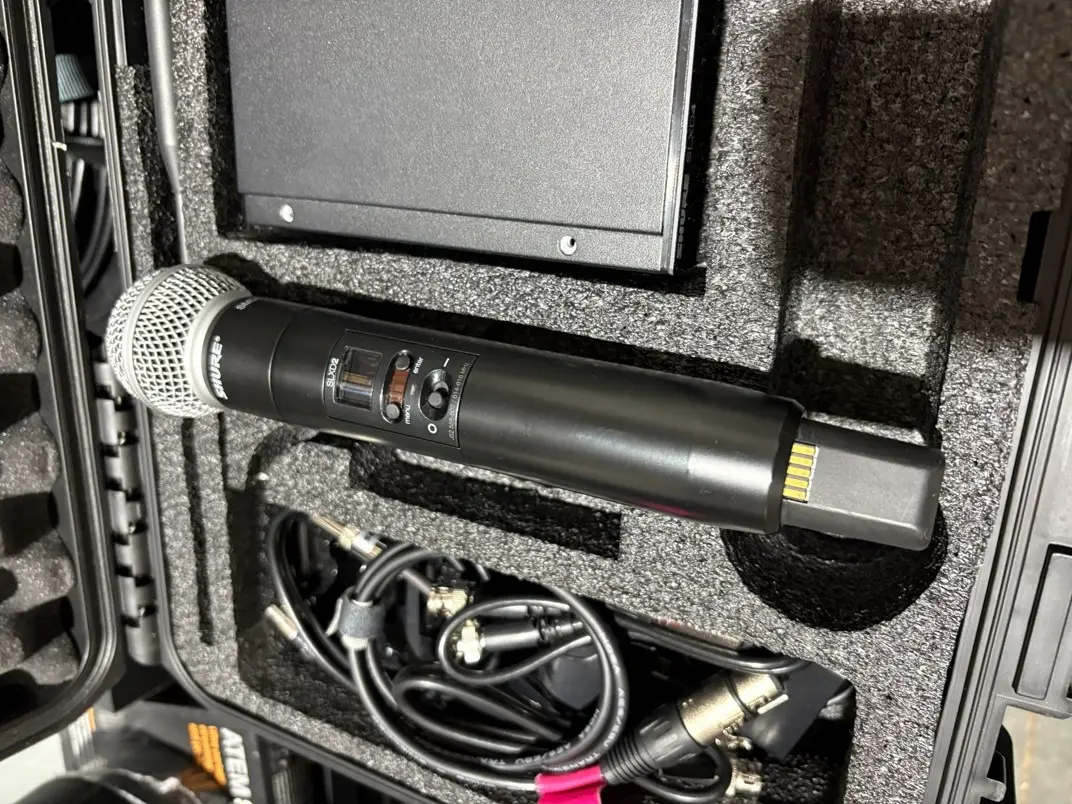
- Test key microphones, especially wireless microphones and podium mics, for volume and clarity.
- Walk the room and listen for hum, buzzing, or feedback that was not there before.
Video and Displays
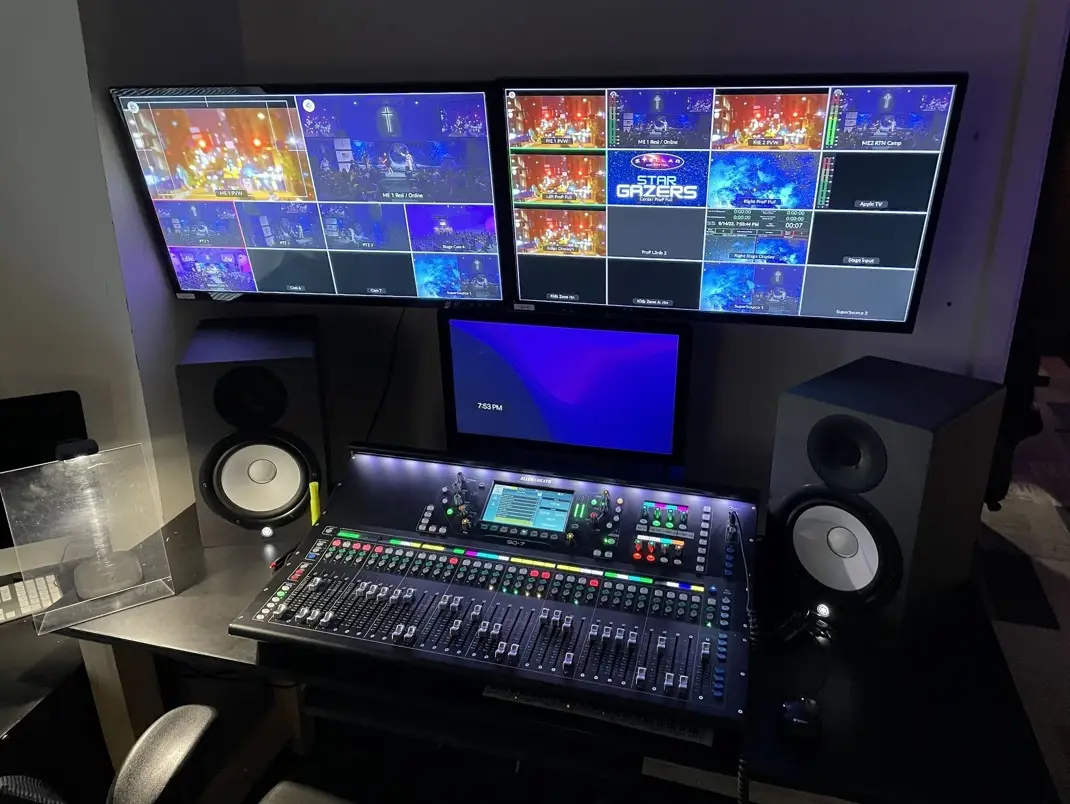
- Turn on projectors, high-definition displays, and video walls. Confirm they see the right source.
- Check that the picture is bright enough, roughly centred, and not oddly tinted.
- Run a quick slide deck or video input to confirm the image fills the screen properly.
Control and Conferencing
- Wake the touch panel or control surface. Tap through the main presets to confirm they respond.
- In conferencing rooms, start a short test call and check that cameras, mics, and speakers all pass the signal.
Room and Power
- Confirm all needed devices are actually powered on and reachable.
- Take a quick look around for cables that have been pulled loose, pinched by furniture, or turned into a trip hazard.
Weekly AV Room Walkthrough
Once a week, take a little more time with each key room. This is where you catch many small issues early.
Basic Cleaning and Surfaces
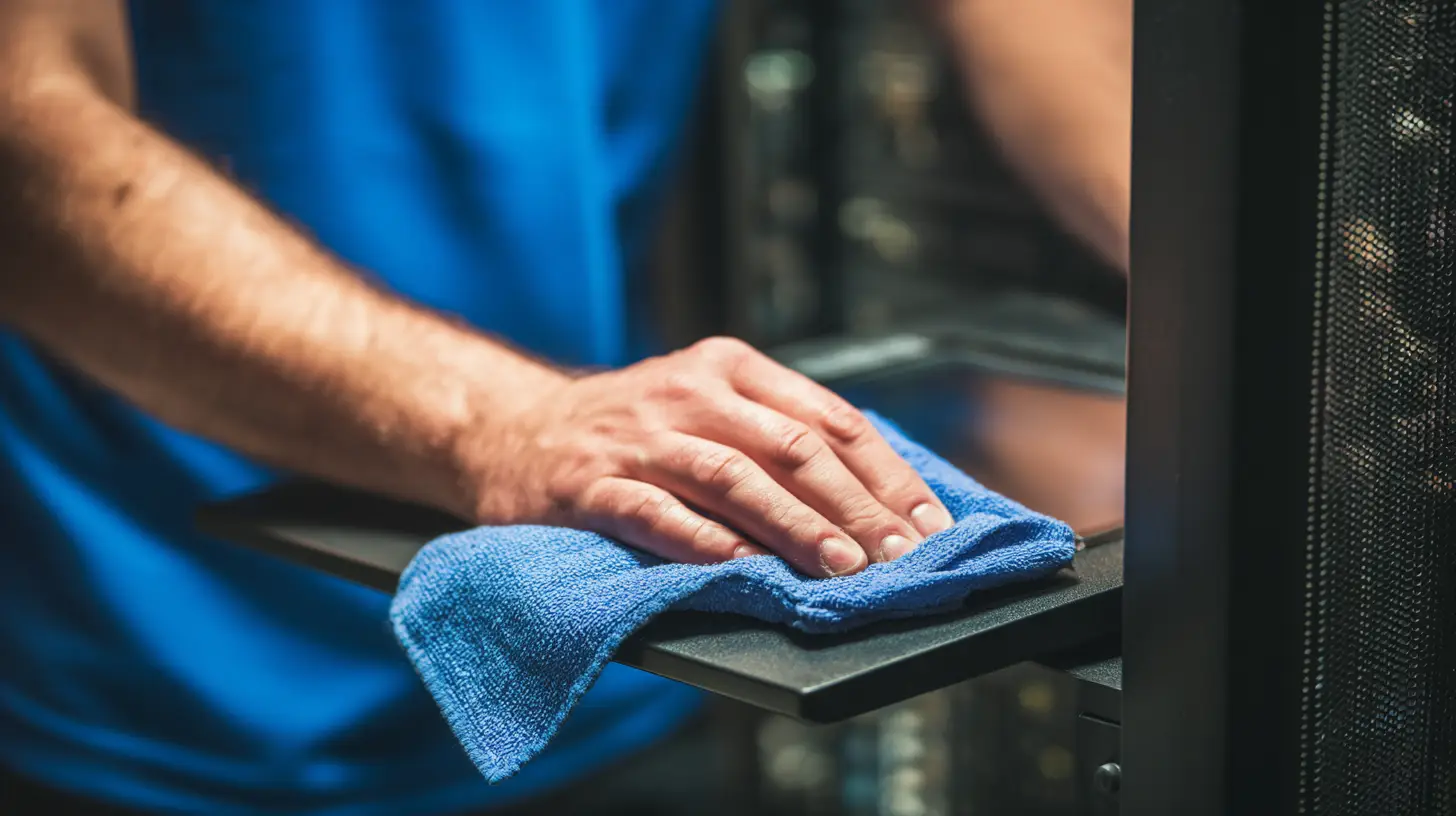
- Wipe fingerprints and smudges off displays and touch panels with the correct cleaner.
- Dust exposed audio visual equipment on racks, podiums, and shelves so vents stay clear.
Cables, Plates, and Connectors
- Inspect visible HDMI, audio, and network cables for kinks, crushed spots, or broken latches.
- Check wall plates, table boxes, and floor plates to be sure they are secure and not cracked.
Audio and Video Behavior
- Play a standard piece of test content through your AV systems and walk the room. Listen for dead speakers or weak zones.
- Watch for flicker, brief blackouts, or “no signal” errors when you switch between sources.
Control and User Experience
- Confirm that presets on the control panel still do exactly what the labels say.
- Note any user complaints or “workarounds” from the week and add them to your maintenance activities list.
Monthly Cleaning and System Health Checks
Once a month, plan time for deeper system checks. Many of these are safe for an internal tech team that knows the room.
Projector, Displays, and Video Walls
- Clean projector air intakes and filters following the manufacturer's instructions.
- Check projector lamp hours or laser usage and flag any that are close to the end of life.
- Look closely at displays for dim corners, color issues, or stuck pixels.
Racks, Fans, and Ventilation
- Open rack doors and confirm cooling fans are spinning and not clogged with dust.
- Make sure nothing is stacked on top of gear that needs ventilation, especially amplifiers and video processors.
Firmware, Software Updates, and Security
- Review device menus or vendor portals for recommended firmware or software updates.
- Schedule updates for low-risk times so you do not interrupt an event or workday.
- Confirm that control processors and other smart AV equipment still have the right passwords and access levels.
Backups and Settings
- Verify that recent backups exist for control code, DSP presets, and configuration files.
- Check that labels on touch panels match the way people actually use the room.
Quarterly and Annual Professional Service Items
Some tasks are better handled by a professional integrator with the right tools. Use this list when you plan service visits for your AV systems.
Deep Audio Tuning and System Calibration
- Run full system calibration for main spaces using measurement microphones and proper software tools.
- Balance levels between the stage, main seating, lobby, and overflow areas so they all feel consistent.
Display and Camera Optimization
- Perform color and brightness calibration on projectors and high-definition displays so images look the same across rooms.
- Reframe and refocus fixed and PTZ cameras, especially in rooms used for streaming or hybrid meetings.
Wiring, Network, and Power Protection
- Inspect and test hidden terminations in racks, behind displays, and in ceiling or wall spaces.
- Review network switches, VLANs, and QoS settings to confirm they still match current AV traffic.
- Check power protection. Make sure critical gear is plugged into proper power outlets, UPS units, and surge protectors rather than random strips.
System Review and Lifecycle Planning
- Review error logs and your maintenance records to find patterns.
- Identify aging equipment that should be replaced before it fails in the middle of an important event.
- Update system diagrams and asset lists so you always know what is installed where.
Simple Logging and Documentation Habits
You do not need a complex system to keep useful records. A simple spreadsheet or shared document works.
- Keep one page for each room listing the audio visual equipment in that space.
- For every set of system checks, record the date, who checked it, and what they found.
- Note every professional service visit and what was repaired, replaced, or adjusted.
- Use this history when you talk to your AV partner about upgrades or recurring problems.
When to Call RYGID AV
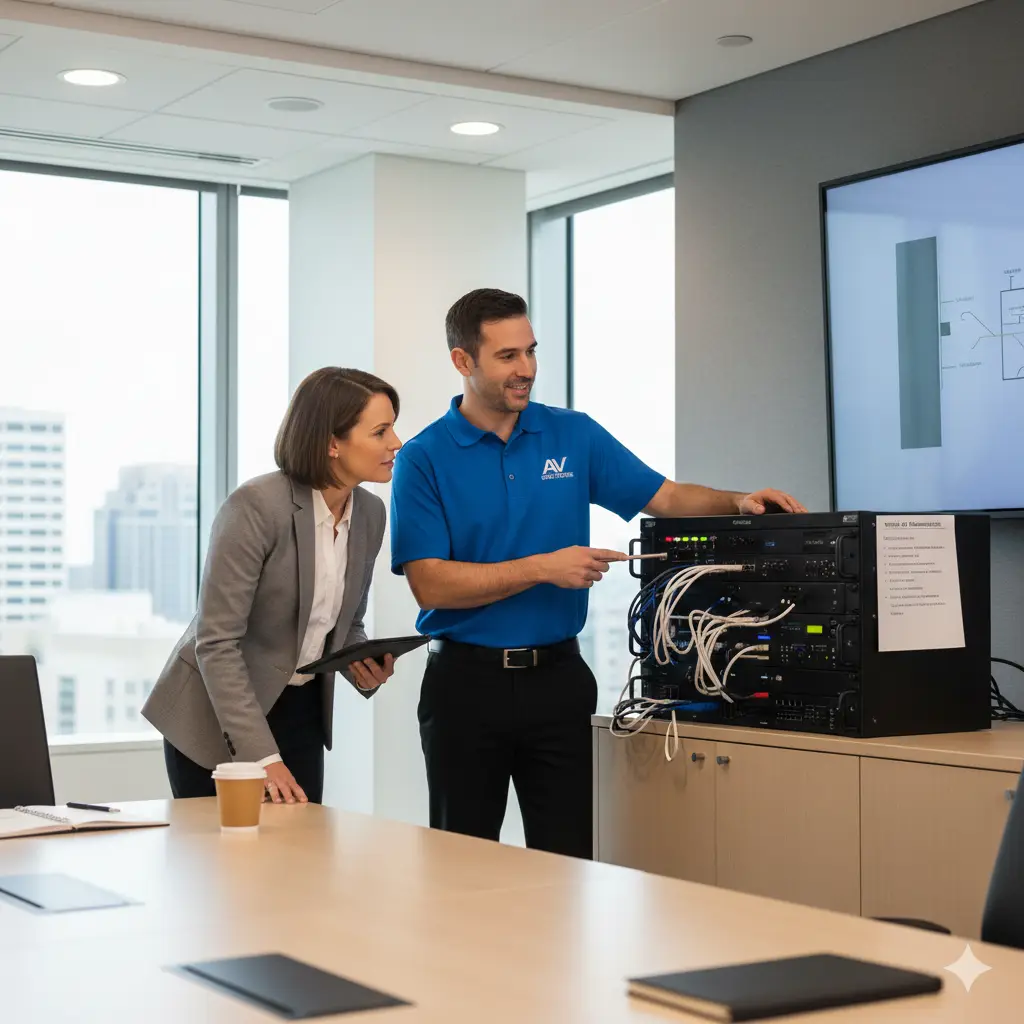
Even with a strong checklist, some problems keep coming back. Call your integrator if you see repeated dropouts, frequent system reboots, overheating gear, or projectors that keep failing early. Regular service from a team that knows your AV setup will reduce emergency calls and extend the life of your audio systems, video equipment, and control gear.
If you are ready to turn this checklist into a reliable plan for your event space, classrooms, or worship center, the RYGID AV team can help you build a schedule that fits how your rooms are used.
.webp)
Recommended articles
Explore our latest news & articles below


Where to Contact + Connect with RYGID AV
Mooresville, NC 28117