
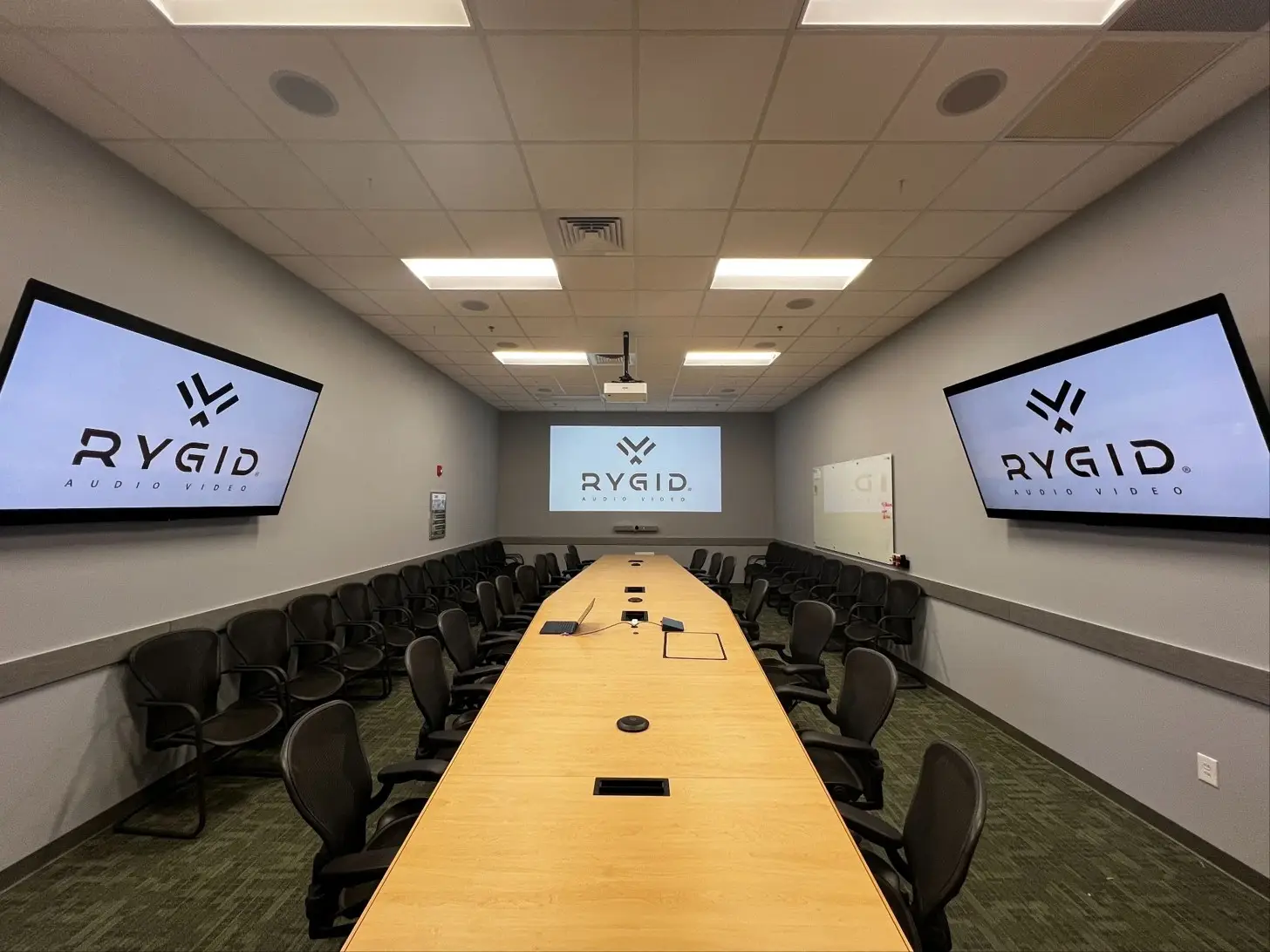
"I just want to plug in an HDMI cable and have it work."
I've had this exact conversation with four or five different organizations in just the last few weeks. The request makes sense. Nobody wants a meeting room that needs a manual. But plugging in one cable and having everything work, across two screens, with any laptop, on any meeting platform, isn't simple. In most rooms, it isn't even possible.
The problem isn't that people are asking for too much. It's that they've been trained by the way conference room kits are marketed. You see a video bar, a touch controller, and two screens in a product photo, and you fill in the gaps with how you want it to work for your team. The technical side of what that kit can and can't do never comes up until the equipment is on the wall.
So let's walk through what's actually going on, starting with the part that trips up almost everyone.
Teams Is Not Teams Rooms (and Zoom Is Not Zoom Rooms)
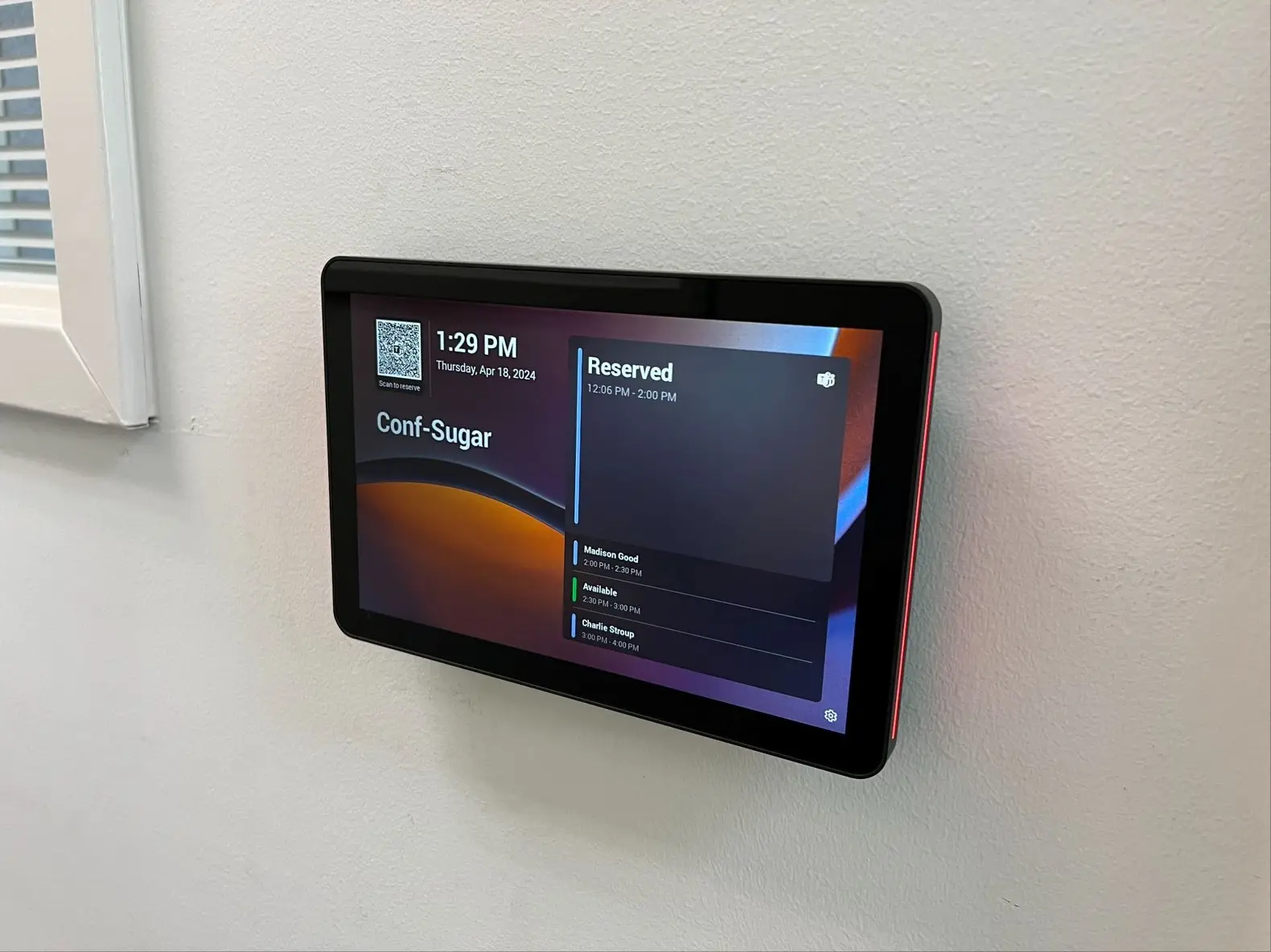
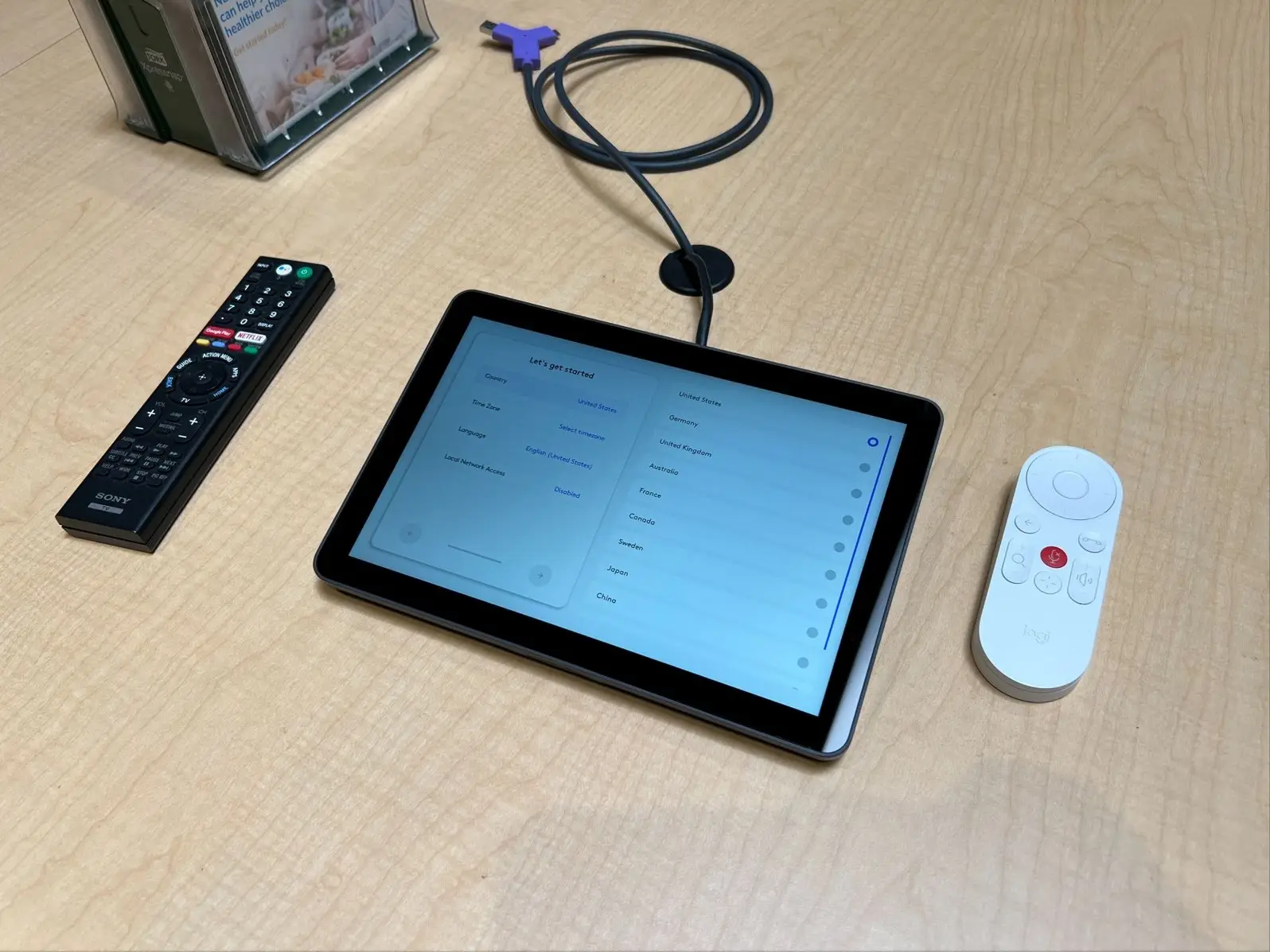
Microsoft Teams is the app you run on your laptop. Microsoft Teams Rooms, usually shortened to MTR, is something different. It's a fixed codec: meeting software that's preloaded on a specific, certified device in the room and requires its own room license. Zoom works the same way. Zoom is the app. Zoom Rooms is the dedicated room system.
These room systems don't run on just anything. They live on the hardware they were built for, and the room is set up around one platform.
The other path is BYOD, or Bring Your Own Device. But when people bring their own device, what they are really doing is BYOC: Bring Your Own Codec. It means running the meeting on whoever's laptop is plugged in, using the Zoom, Google Meet, or Teams they already have installed, while the room supplies the camera, microphones, speakers, and displays.
Both paths are legitimate. A room system gives you one-touch meetings and built-in dual displays, but it locks the room to one platform. BYOC gives you flexibility, but the laptop and the person using it become part of the system. Most people want both. They want the dual-screen experience a Teams Room delivers, without being locked into one platform. That's where things get complicated.
Why Dual Display Is Where BYOC Breaks Down
People want dual-screen functionality so they can see the people on the call on one screen and something different, like a spreadsheet or a slide deck, on the other. In a Teams Room or a Zoom Room, that's built in. The room system knows it has two screens and puts people and content where they belong.
With BYOC, the laptop is in charge, and that creates problems on two fronts.
First, not every laptop can do it. Not all laptops can drive two external displays. Some simply can't. If someone walks in with one of those laptops, the second screen won't work the way they expect, no matter how good the room equipment is.
Second, most users don't know how to set it up. Even with a capable laptop, someone has to connect it correctly, set the displays to extend instead of mirror, drag the right windows to the right screens, and pick the room's camera and microphones in the meeting app. That's a lot to ask of someone who walked in two minutes before a client call.
On top of that, some conference room kits don't allow for BYOD at all. So the moment you ask for dual display plus BYOC, you've often stepped outside what a kit can handle. You're no longer using a kit. You're asking a kit to behave like a system it isn't.
The Workarounds That Don't Work
When people run into these limits, the first instinct is usually a workaround. The most common one I hear is running a long USB cable from the table to the equipment.
No, you can't just run a 100-foot USB cable and have it work. It might work for three months, then fail and take the device with it. Nobody wants that.
The same goes for adding adapters, dongles, and instructions taped to the table. Every workaround adds another thing that has to go right for the meeting to start. The fix isn't more cables. It's designing the room around how you actually want to meet.
So What Should You Do?
Start by deciding which path fits your organization. If everyone uses one platform and you want a room that works the same way every time, a dedicated room system is hard to beat. If you need the freedom to join whatever meeting link shows up, BYOC is the right call, but the room has to be designed to support it, especially if you want two screens.
That decision also affects whether a packaged kit will work in your room at all. We've broken that part down in [how to tell whether your room needs a kit or a custom system].
If you want help sorting it out for your space, take a look at our conference room AV solutions or reach out to RYGID AV. We'll ask the right questions up front and design a room that's simple for the people who actually use it.
RYGID AV | 122 Backstretch Ln., Mooresville, NC 28117 (980) 263-9194 | info@rygidav.com
.webp)
Recommended articles
Explore our latest news & articles below


Where to Contact + Connect with RYGID AV
Mooresville, NC 28117